Do You Have to Label AI-Generated Videos on YouTube Shorts?
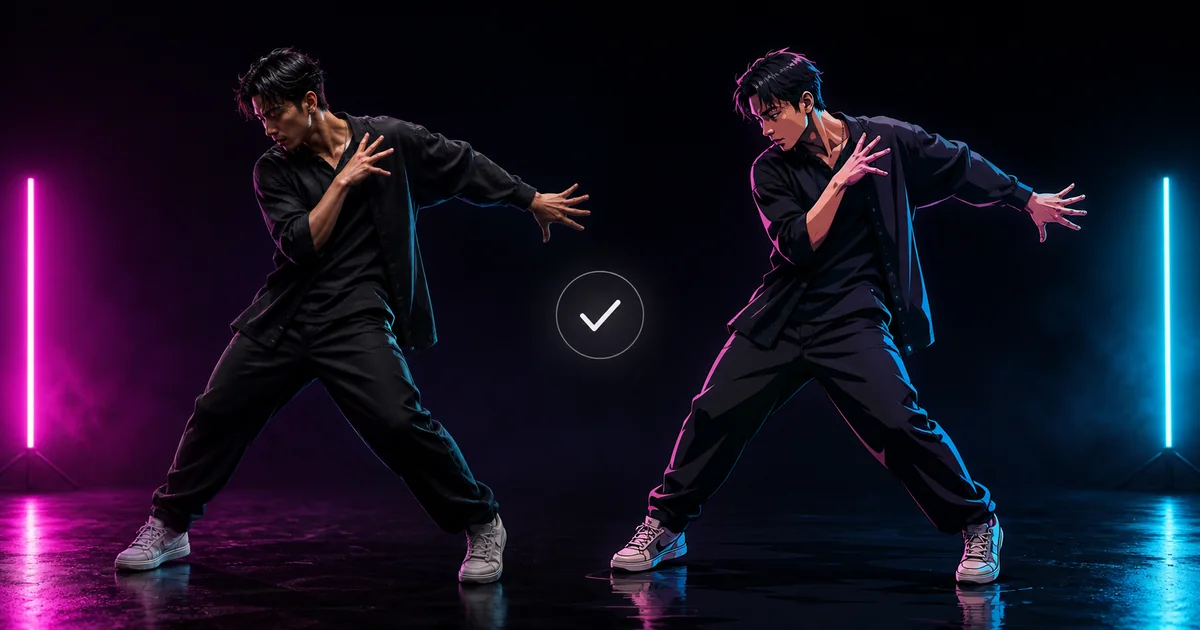
You have to label an AI-generated YouTube Short when AI creates or meaningfully changes photorealistic content. You do not have to disclose every obvious animation, fantasy scene, color adjustment, caption, or minor repair just because AI was involved.
The upload setting is based on the finished result, not the mere use of an AI tool. Ask whether the Short could look like real footage of a person, place, or event that did not happen.
YouTube changed its labels and upload wording in May 2026, so we re-checked the current YouTube Help page and YouTube’s May 2026 update on August 18, 2026.
The short answer
YouTube currently requires creators to disclose photorealistic content that was generated or meaningfully altered with AI. That includes making a real person appear to do something they did not do, changing footage of a real event or place, or generating a realistic scene that never happened. Clearly unrealistic animation and minor aesthetic edits do not require creator disclosure under the current rule.
For a character dance video, look at the final export. A photorealistic person performing transferred choreography needs disclosure. An unmistakably animated character usually does not. A stylized character in realistic footage can sit between those cases, so the realism of the result matters more than the name of the app that made it.
Which AI Shorts need disclosure?
Use this table before you upload:
| Your finished Short | Select Yes for AI use? | Why |
|---|---|---|
| A photorealistic real person’s likeness doing a dance they never did | Yes | The video makes a real person appear to do something they did not do. |
| A photorealistic fictional person dancing in a realistic room or street | Yes | It shows a realistic scene that did not happen. |
| An obvious anime, cartoon, painted, or toy-like character | No, if the finished video is clearly unrealistic | YouTube says clearly unrealistic content does not require creator disclosure. |
| A stylized character replacing someone in otherwise real footage | Yes when the result is photorealistic or meaningfully changes what appears to have happened | The finished scene, rather than the style of the input image, determines the answer. |
| Captions, color correction, sharpening, or audio repair only | No | YouTube lists minor aesthetic edits and ordinary production assistance as exceptions. |
This is a disclosure test, not a general permission slip. Copyright, privacy, impersonation, Community Guidelines, and monetization rules still apply separately.
A real person or photorealistic replacement
Select Yes when the Short makes a real person appear to perform movement they
did not perform. The same answer applies when the person is invented but looks
photorealistic enough to resemble footage captured by a camera.
A dance can come from a real source video and still need disclosure. If AI replaces the visible person, the finished scene has been meaningfully changed.
An anime, cartoon, or clearly fictional character
YouTube’s current Help page says creators do not need to disclose clearly unrealistic content. An unmistakably cel-shaded anime character or toy-like mascot is different from a lifelike human replacement.
That is not an “animation can never be labeled” rule. If you label animated content voluntarily, YouTube says the disclosure can appear in the expanded description. A borderline character can still cross into the photorealistic category. Judge the output, not the input art file.
Mixed real and synthetic footage
Real background footage does not automatically make the edit minor. If a generated subject now appears to stand in a real location or interact with real people, ask whether a viewer could mistake the scene for something that actually happened.
When the answer is yes, disclose it. A meaningful person replacement is not in the same category as brightness correction or captions.
How to disclose AI use in YouTube Studio
YouTube’s current documented path works in YouTube Studio on a computer or mobile device:
- Start the upload in YouTube Studio.
- Open the video’s details.
- Find Attributes.
- Under AI use, select Yes when the Short meets the disclosure rule, or No when it does not.
- Finish the remaining upload details and publish when ready.
Older guides call this setting Altered content. The current English Help page
calls it AI use, so follow the live Help page if your Studio screen looks
different from an old screenshot.
You can also change the disclosure for most already-published videos in Studio. Open the video from the Content tab and update the AI use survey under Attributes.
What viewers see after you disclose
YouTube’s May 27, 2026 update moved labels closer to the content. For photorealistic or meaningfully altered Shorts, viewers can see an overlay on the video itself. Disclosures for unrealistic, animated, or slightly altered content can appear in the expanded description.
YouTube can also apply a label automatically when:
- the Short uses YouTube’s own generative tools;
- the file contains qualifying C2PA metadata; or
- YouTube’s internal systems detect AI-generated or altered content.
Most mistaken automatic classifications can be changed in Studio. YouTube says some labels remain permanent, including labels tied to its own AI tools, qualifying C2PA metadata, or manual review.
Does the AI label hurt reach or monetization?
YouTube says the disclosure label alone does not change how a video is recommended or whether it is eligible to earn money. That is the useful, narrow answer.
It does not mean every AI Short will be recommended, approved for the YouTube Partner Program, or safe under every other policy. The label describes how the media was made. It does not judge originality, copyright, harmful content, or the rest of a channel.
Skipping a required disclosure is not a growth tactic. YouTube says repeated non-disclosure may lead to a manually applied label or penalties, including content removal or suspension from the YouTube Partner Program.
How this applies after exporting from MoveAs
MoveAs combines a source motion video with a character image. When the result is ready, you can save it to Photos or open the standard iOS share sheet. MoveAs does not publish directly into YouTube, so make the disclosure choice during the later YouTube upload.
Run this quick check on the final video:
- Photorealistic real person: select Yes.
- Photorealistic invented person or realistic event: select Yes.
- Clearly anime, cartoon, painted, or toy-like character: disclosure is not required solely because AI was used.
- Stylized subject in realistic footage: select Yes when the result could be mistaken for a real scene or meaningfully changes what appears to have happened.
- Only captions or minor cleanup: select No unless another part of the Short contains realistic generated or meaningfully altered content.
Check the final export rather than the source image. A stylized input can produce a more realistic result, and a photo can produce something obviously animated.
Frequently asked questions
Do all AI-generated YouTube Shorts need a label?
No. YouTube currently requires creator disclosure for photorealistic content that was generated or meaningfully altered with AI. Clearly unrealistic content and minor edits do not require disclosure solely because AI was used.
Do anime or cartoon Shorts need YouTube’s AI label?
Not when the finished Short is clearly unrealistic. If the animation is photorealistic or placed into a believable real scene in a way that changes what viewers could think happened, select Yes.
Does the AI label hurt Shorts reach or monetization?
YouTube says the label alone does not change recommendations or eligibility to earn money. That statement does not override the platform’s other content, originality, copyright, or monetization rules.
Can YouTube add an AI label automatically?
Yes. YouTube may automatically label content made with its own generative tools, files with qualifying C2PA metadata, or content detected by its internal systems. Most mistakes can be corrected in Studio, but some labels cannot be removed.
Posting the same clip on another platform? Read our TikTok AI-label guide, or browse the MoveAs blog for more practical creator guides.